Saturday, May 29, 2010

Animation


Lesson 1: Keyframes and the Graph Editor.


In this lesson, you learn how to:
■ Set keyframes for animatable objects and their attributes.
■ Use the Time and Range slider and Playback Controls to control the
playback.
■ Use keyboard shortcuts to set keyframes.
■ Use the Graph Editor to view animation curves.
■ Modify the animation of objects using the Graph Editor.
■ Set preferences to increase the playback quality.

By using the graph editor for this task, the motion of the ball had a more realistic curve/bounce to it.

Lesson 2: Set Driven Key.
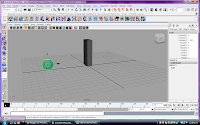

In this lesson you learn how to:
■ Link the object attribute behavior between two objects which will link the
movement of one keyframed object to another with no keyframes assigned.
■ Use the Graph Editor to adjust the animation for the driven object.

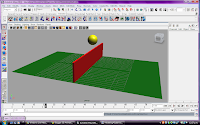
The motion created here happened when the ball moved towards and away from the oblong. When the ball got closer the oblong would rise up to a set position. Once the ball had passed through or moved away, the oblong returned to its original position.


Lesson 3: Path Animation.
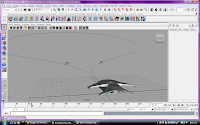


In this lesson, you learn how to:
■ Set an object to animate along a motion path using a NURBS curve as the
path.
■ Modify the timing and rotation of an object along a motion path.
■ Blend between keyframe and motion path animation.

This was very tricky to get right. The position of the air craft needed to be set to correct points for it to work properly. If I was to replicate this sort of animation from scratch I would need to plan out the placement before hand so that it would look realistic.

Lesson 4: Nonlinear animation with Trax.

In this lesson you learn how to:
■ Key animation sequences for use as nonlinear clips in Trax.
■ Create clips from your animation sequences for use in the Trax Editor.
■ Use the Trax editor to position, modify, and arrange clips in order to create and modify animation sequences in the scene.
■ Scale clips to modify the timing of an animation sequence.
■ Trim clips to remove unwanted motion.
■ Cycle clips to create motion that repeats.
■ Use the Graph Editor to modify the animation of a clip.
■ Use the Trax Editor to work with motion capture data.
■ Reuse clips using the Outliner and the Visor.

Part 1:


This was even harder to get right. There's so many more points that need to be considered and then setting them into trax was confusing.

Part 2:
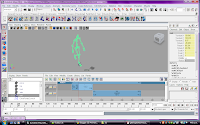
Moving an animated skeleton and getting them to rotate their direction.


This was using trax as well and already had some animation built into it. I would have preferred that it didn't so that I could learn how to combine a skeleton to a polygon shell and then animate it to move as I have had a lot of difficulty in trying to get this right.
Once the moving skeleton was in a trax clip it was easy to make it rotate.

Other Notes:

Blending clips
You can blend the animation between clips. Blends allow you to create smooth
transitions and mixes between different motions. A blend can be applied
between any two clips that overlap entirely, partially, or not at all. The best
results are obtained when blending between similar motions. In some
situations, a blend can be used to correct jump cuts. For more information
see Create and edit blends in the Maya Help.

Key into clip
You can set keyframes to alter the animation within a clip. This process is
called Keying into a clip. When you key into a clip, keyframes are placed at
the current time on all the animation curves in the selected clip. For more
information see Key into a clip in the Maya Help.

Time Warps
Time Warps let you change the timing of a clip without modifying the clip's
animation curves. You modify the Time Warp by editing the animation curve
that controls the warp. Time Warps can also be used to reverse the animation
in a clip. For more information see Create and edit time warps in the Maya
Help.

Visor and Outliner
Both the Visor and Outliner can be used to access clips. The Visor provides a
graphical interface to access other resources (such as clips, poses, shaders,
textures, and brushes) in your scene. The Outliner displays clips in a textual
manner, and is a bit more compact.

Audio clips
You can display and play multiple audio files in Trax allowing you to
synchronize your motion clips to specific audio events (sound effects, musical
notes, drum beats) in the audio file. Once you import an audio file into Trax,
you can then move and rename the audio clip. For more information see
Work with audio in the Maya Help.


Lesson 5: Inverse Kinematics.

In this lesson you learn how to:
■ Create and use hierarchies to define logical relationships between
animatable objects.
■ Combine the components of a 3D mechanical arm model into a
hierarchical grouping.
■ Construct a skeleton for use with IK.
■ Combine the skeleton with the mechanical arm model by parenting the
components into a hierarchy.
■ Create an IK system to allow the skeleton hierarchy to be posed.
■ Create a control object to manipulate the IK system.
■ Use constraints to control the position and orientation of components
within the IK system.
■ Limit the range of movement on the IK system.
■ Pose and set keyframes for the IK system.
■ Animate an object by constraining its motion to two or more objects.

*images to be put up.

Subdivision Surfaces.


Lesson 1: Modelling a Subdivision Surface.


In this lesson, you learn how to:
■ Convert a polygon surface to a subdivision surface.
■ Work with subdivision surfaces in Polygon Proxy Mode.
■ Split subdivision faces to create areas for more detail in a model.
■ Extrude the split faces to create fingers on the hand.
■ Work with subdivision surfaces in Standard Mode.
■ Change the Display Level when working in Standard Mode.
■ Add more detail to subdivision surface models using Refine Selected Components.
■ Create a crease along a vertex edge.


note: 194 normal mode, move tool, not working. I couldn't add the extra details to make the finger nails.

Monday, May 24, 2010

Other Interesting stuff


TBC


Lots of 3d video examples. Consist of very basic to extremely well constructed.

Sunday, May 23, 2010

NURBS Modeling


NURBS (Non-Uniformal Rational B-splines).

Lesson 1: Revolving a curve to create a surface.


In this lesson you learn how to:
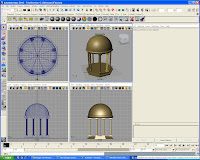
■ Create a NURBS curve using the control vertices (CV) creation technique.
■ Use the grid for visual reference when modeling.
■ Determine the start and end points for a NURBS curve and its direction.
■ Create a revolved NURBS surface using the Revolve tool.
■ Change the display shading smoothness for a NURBS surface.
■ Edit a NURBS surface by editing its initial profile curve when it is linked
to the surface by construction history.


Lesson 2: Sculpting a NURBS surface.

In this lesson you learn:
■ Basic sculpting operations (push, pull, smooth, relax and erase) with the
Sculpt Geometry Tool.
■ How the density of isoparametric lines affects the surface detail possible
when sculpting.
■ How to increase the surface subdivisions on a NURBS surface to aid with
surface sculpting.
■ How to change the brush radius for the Sculpt Geometry Tool.
■ How Opacity and Max Displacement affect the sculpting operations.
■ How to import geometry from a pre-existing file into your current scene.

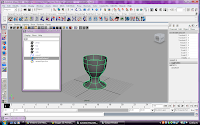
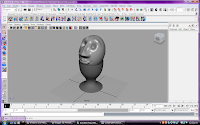
*Egg cup imported to scene


Lesson 3: Lofting curves to create a surface.


In this lesson you learn how to:
■ Modify the outline of a circle primitive by editing the position of its CVs.
■ Use the magnet snap feature.
■ Loft cross section curves to create a NURBS surface using the Loft tool.
■ Edit the form of an existing primitive object by moving its CVs.
■ Parent one object to another using the Outliner.


Tuesday, April 27, 2010

Getting Started with Maya Tutorials:


Introduction

Lesson 1: Maya Interface (already been through with the Maya built in tutorial).

Lesson 2: Creating, Manipulating and viewing objects.

In this lesson, you learn how to:
■ Create 3D primitive objects.
■ Select objects for manipulation and editing purposes.
■ Move and rotate objects using your mouse.
■ Move, rotate, and scale objects using numeric input.
■ Duplicate objects.
■ Change the viewing panels in Maya using a variety of methods so you can
view your objects from different points of view.
■ Undo actions when you need to undo a particular task or step.


Lesson 3: Viewing the Maya 3D scene.

In this lesson you learn how to:
■ Understand the difference between moving objects in the scene and moving
the point of view on the scene.
■ Use the dolly, track, and tumble camera tools to change the view of your
scene in both the orthographic and perspective views.
■ Rotate objects using the transformation tools in the Toolbox.
■ Select objects using a variety of techniques.
■ Group objects together so they can be transformed as a unit.
■ Display objects in both wireframe and shaded modes.
■ Use additional primitive objects and options.

Lesson 4: Components and Attributes.

In this lesson you learn how to:
■ Template objects in the scene.
■ Understand the difference between objects and components.
■ Edit objects at their component level.
■ Assign surface material attributes
■ Access the Attribute editor


Polygon Modeling

Lesson 1: Modelling a polygon mesh.

In this lesson you’ll be introduced to some of the polygon modeling tools
Maya provides by learning how to:
■ Use 2D image planes as a reference for constructing 3D models
■ Use 3D primitives as the basis for creating more complex models
■ Work with the components of a polygon mesh (faces, edges, and vertices)
■ Smooth a polygon mesh
■ Select the faces, edges, and vertices of polygonal meshes
■ Create polygon faces by placing vertices
■ Scale and extrude faces on a polygon mesh
■ Move and rotate extruded polygonal meshes
■ Split vertices and subdivide polygonal faces
■ Combine separate meshes into one mesh
■ Bridge between meshes
■ Add faces to an existing mesh
■ Use Snap to Grid
■ Preview a smoothed high resolution version of a polygon mesh
■ Harden and soften polygon edges

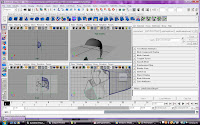
Beginning to create the outer shell:

The final render:
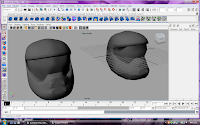
The helmet on the left is the final render. The one to the right was its original outline. These two were linked which ment if i edited the right one to make more define edges, the left one would change appropriately and allow for a more smoother render.


Lesson 2: Sculpting a polygon mesh.

In this lesson you’ll be introduced to some of the polygon modeling options
Maya provides by learning how to:
■ Use reflection to perform symmetrical transformations to your model
■ Use Soft Select to transform components with falloff
■ Modify the falloff area and shape
■ Create a custom falloff shape
■ Select components using Marquee select and Drag select
■ Use Camera based selection to limit the components you select
■ Use the Split Edge Tool to separate edge rings

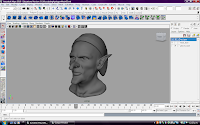
This was a tutorial that supplied the model of a head. The tasks were then designed to turn it into a Goblin.

I have a few software issues with this task. Several times when trying to use the soft modification tool, maya would completely shut down.


Tuesday, March 9, 2010

Some mucking in maya...

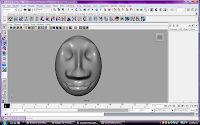
What better way to learn than trial and error. The following example is from sculpting a polygon sphere. I have slowly morphed sections of it to appear to look like the outline of a face. This has very little detail other than its structure, but I now have a better understanding of the sculpt geometry tool and the soft modification tool.


Basic head shape:


Editing using the sculpt geometry tool:


Editing using the soft modification tool:


Some of the short cut keys for these tools are similar to photoshop which made it esaier to understand. For exmaple, when using the scultp geometry tool, togling between holding "Ctrl" and clicking would change which way the sculpture was being modified, either inwards or outwards.


Click on images to enlarge...

Wednesday, March 3, 2010

Some research books...

One of the BIT lecturers, Patricia, lent me some books about 3D animation including a maya book "the art of maya".

I will use some of these to help understand how to create and develop 3D objects and characters.
These books are:

  • the art of maya. Alias wavefront.
  • Game Character Development with Maya. by Antony Ward. New Riders.
  • Learning Maya 6. Fountation. Another Alias product.
  • 3D Creature Workshop. By Bill Fleming.
They are a little dated but still help explain the basic functionality and terminology for maya.